 View Upcoming Digital Marketing, Media and Advertising Conferences & Exhibitions
 Phone:

Posts Tagged "Content discovery"


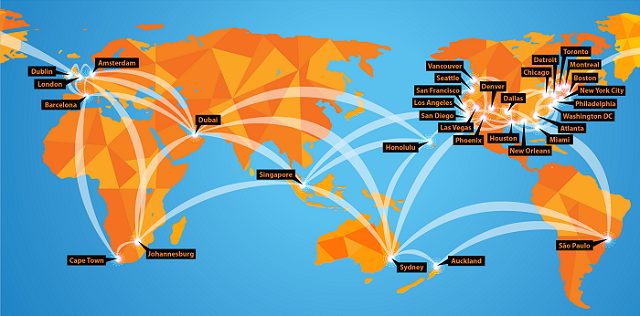
DigiMarCon is the Largest Digital Marketing, Media and Advertising Conference & Exhibition series in the world, with annual events held in all continents (North America, Latin America, Europe, UK, Asia Pacific, Middle East and Africa) in 13 countries (United States, Canada, Australia, New Zealand, United Kingdom, Ireland, Netherlands, Spain, Brazil, Singapore, India, United Arab Emirates and South Africa), across 33 cities (New York, Philadelphia, Boston, Toronto, Vancouver, Montreal, Houston, Dallas, Chicago, Los Angeles, San Francisco, Seattle, Washington DC, New Orleans, Atlanta, Detroit, Miami, Denver, San Diego, Phoenix, Las Vegas, Honolulu, London, Dublin, Amsterdam, Barcelona, Johannesburg, Cape Town, Dubai, Sydney, Auckland, Singapore and Sao Paulo). All DigiMarCon Events can be attended in-person or online. Wherever you are located there is a regional DigiMarCon event nearby you can attend.
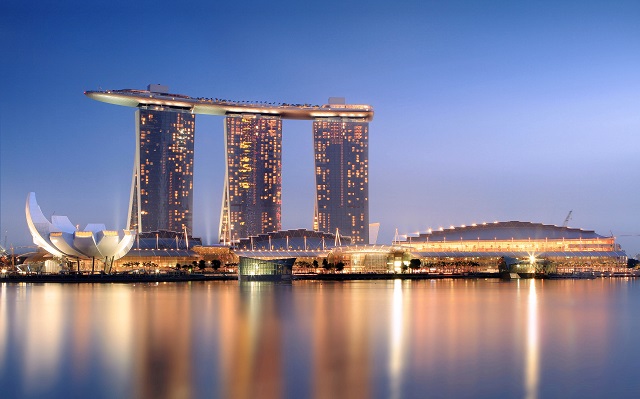
DigiMarCon Conferences are held in top luxury 5-star event venues across the world such as; Royal Caribbean Cruise Ships, Olympic Stadiums, Marina Bay Sands Expo & Convention Centre and Wynn, JW Marriott, Marriott Marquis, Hyatt Regency, InterContinental, The Westin, Renaissance, Hilton, Conrad, W, Sheraton, Loews and Sofitel Hotel properties. Discount hotel room rates at each venue hotel means no hassle getting to and from the venue each day.
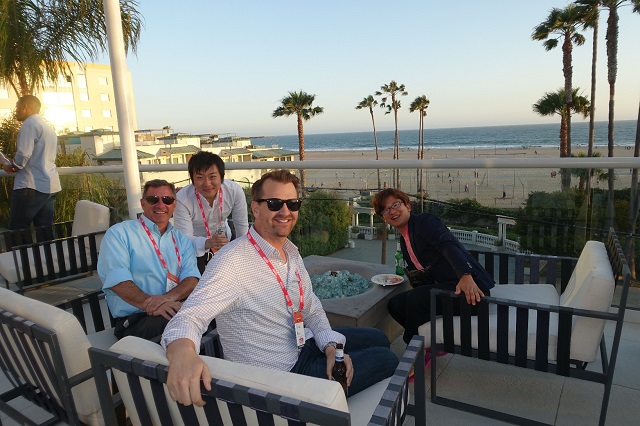
Building relationships matter! At DigiMarCon Conferences we have more networking breaks on our program than others. On average there are 8 Networking breaks at each event giving delegates ample opportunities in a relaxed atmosphere to meet others over the 2-days at the event; from 1-hour round table networking luncheons to 3-hour dinner receptions. These networking breaks are set in picturesque locations to facilitate memorable experiences while fostering new relationships. Such experiences include enjoying cocktails and the Sunset over the Pacific Ocean on a private Ocean Terrace in Santa Monica, to being on the Sydney Olympic Stadium playing arena at night enjoying cocktails under the lights, to dining at the 360 Revolving Restaurant at the top of the CN Tower in Toronto for a Dinner Reception, enjoying cocktails on a private promenade overlooking Times Square in New York City, or having fun at the Dazzles Night Club onboard the Royal Caribbean Oasis of the Seas for a Farewell Party, etc.
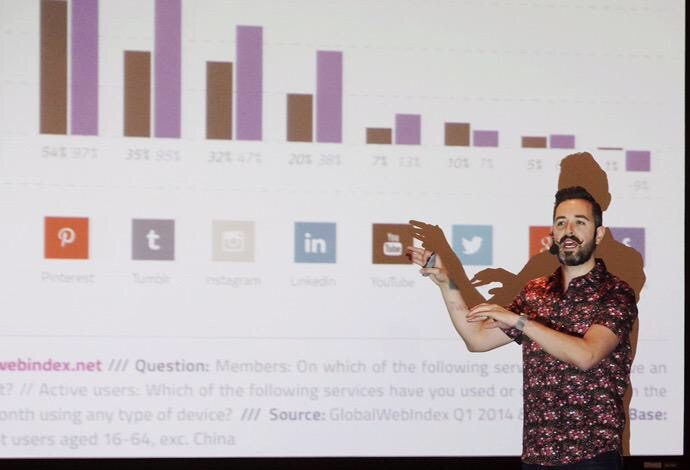
DigiMarCon Keynotes, Panels and Master Classes are facilitated by the foremost thought leaders in the industry, from celebrity social media influencers to CMO’s from the largest Fortune 500 company brands that are disrupting the digital marketing, media and advertising industry, such as Google, Facebook, Microsoft, Amazon, Oracle, Adobe, eBay, Netflix and more. All presentations are pitch-free, and include actionable takeaways, case studies, strategies and tactics, ready to be applied when back in the office.
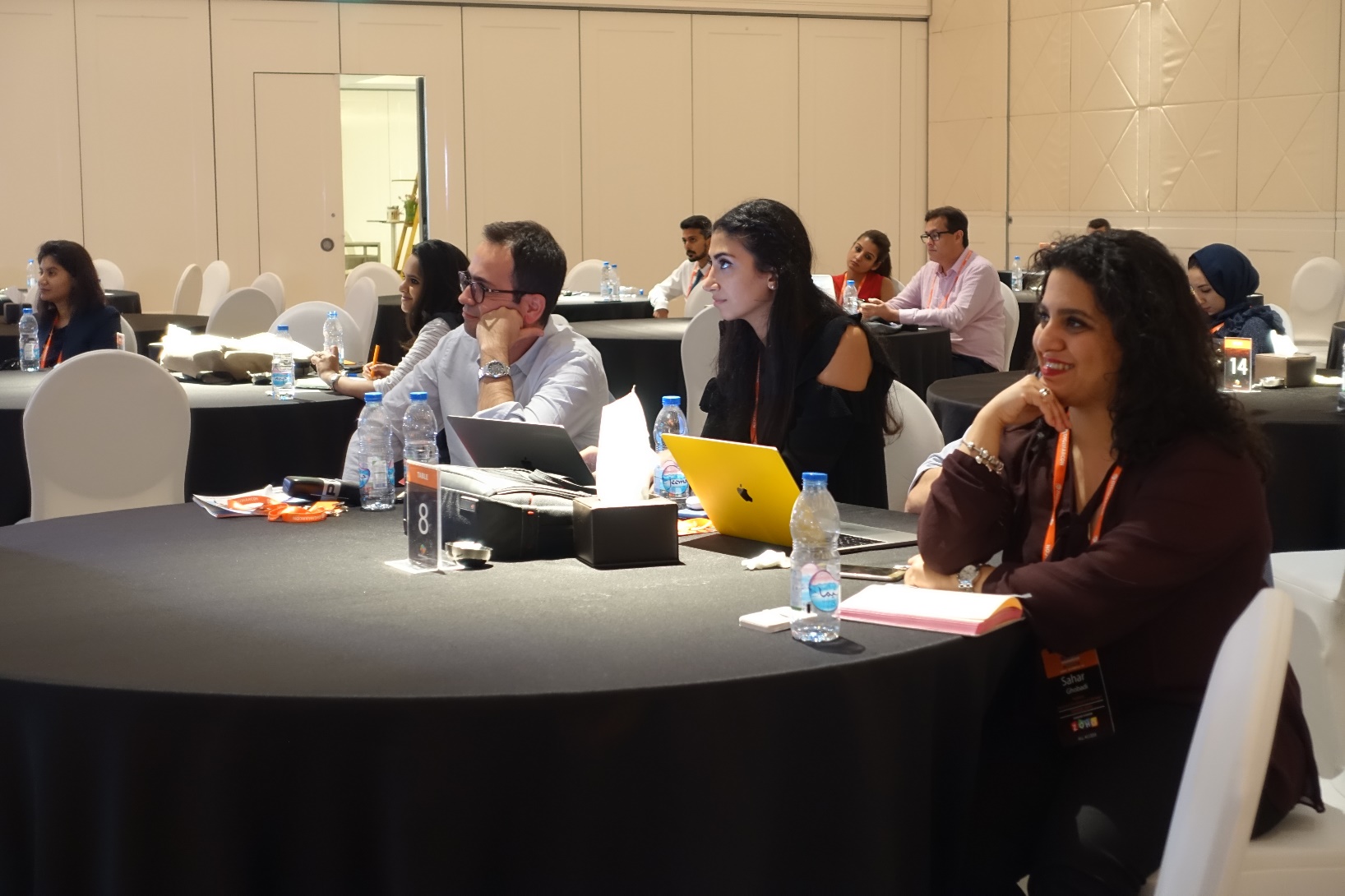
At DigiMarCon Conferences you are never ‘left in the dark’…. literally, in a large room far away from the stage and speakers, crushed in tight theater seating, without even a table, while sitting in the dark. At DigiMarCon all delegates have premium meeting space in luxurious ballroom well-lit spaces, with comfortable seating with table enabling delegates to use their laptop to take notes with ample charging facilities onsite in a comfortable space to learn and thrive. All tables are situated close with direct view of the stage.
DigiMarCon Conferences are affordable to attend, from single-day event passes up to two-day VIP options at a fraction of the cost of other industry events. We offer significant discounts for early bird registrations. Additionally, on top of time-limited discount pass rates, because budgets are tight, we want to make sure all groups have a chance to attend DigiMarCon. For government employees, students, academic, startups, non-profit organizations and teams, we offer generous discounts off the prevailing registration price.
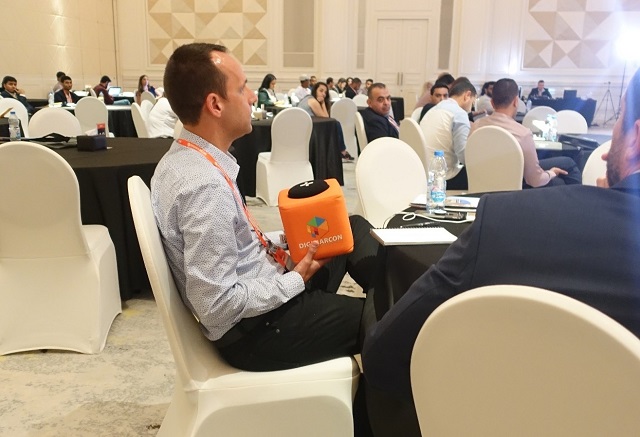
Attend DigiMarCon and you become part of the show! DigiMarCon Conferences tap into the talent of the room, drawing from the knowledge and experience of the professionals in the audience. All DigiMarCon events include regular interactive question and answer sessions with speakers and the audience ideal for collaboration, audience polls, along with ice-breaker and group exercises, steered by charismatic Emcees.
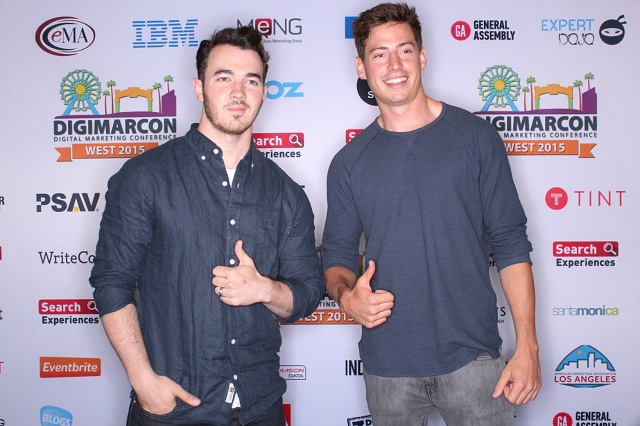
DigiMarCon Conferences put you right up and close with the speakers giving you the opportunity to meet these social media influencers which you follow in person. Speakers are never hidden in private speaker rooms away from the audience, they are in the auditorium sitting right beside you and participating.
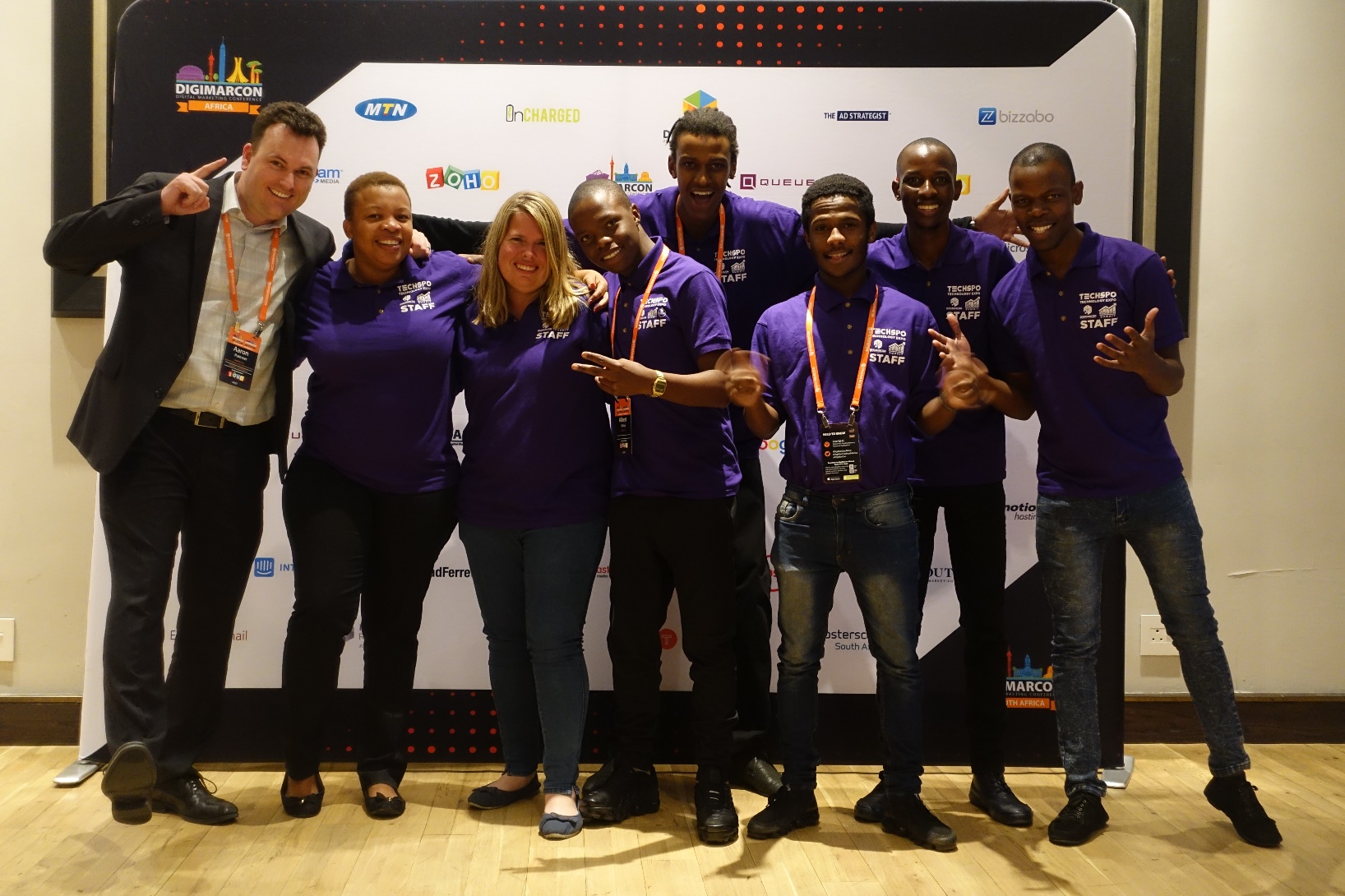
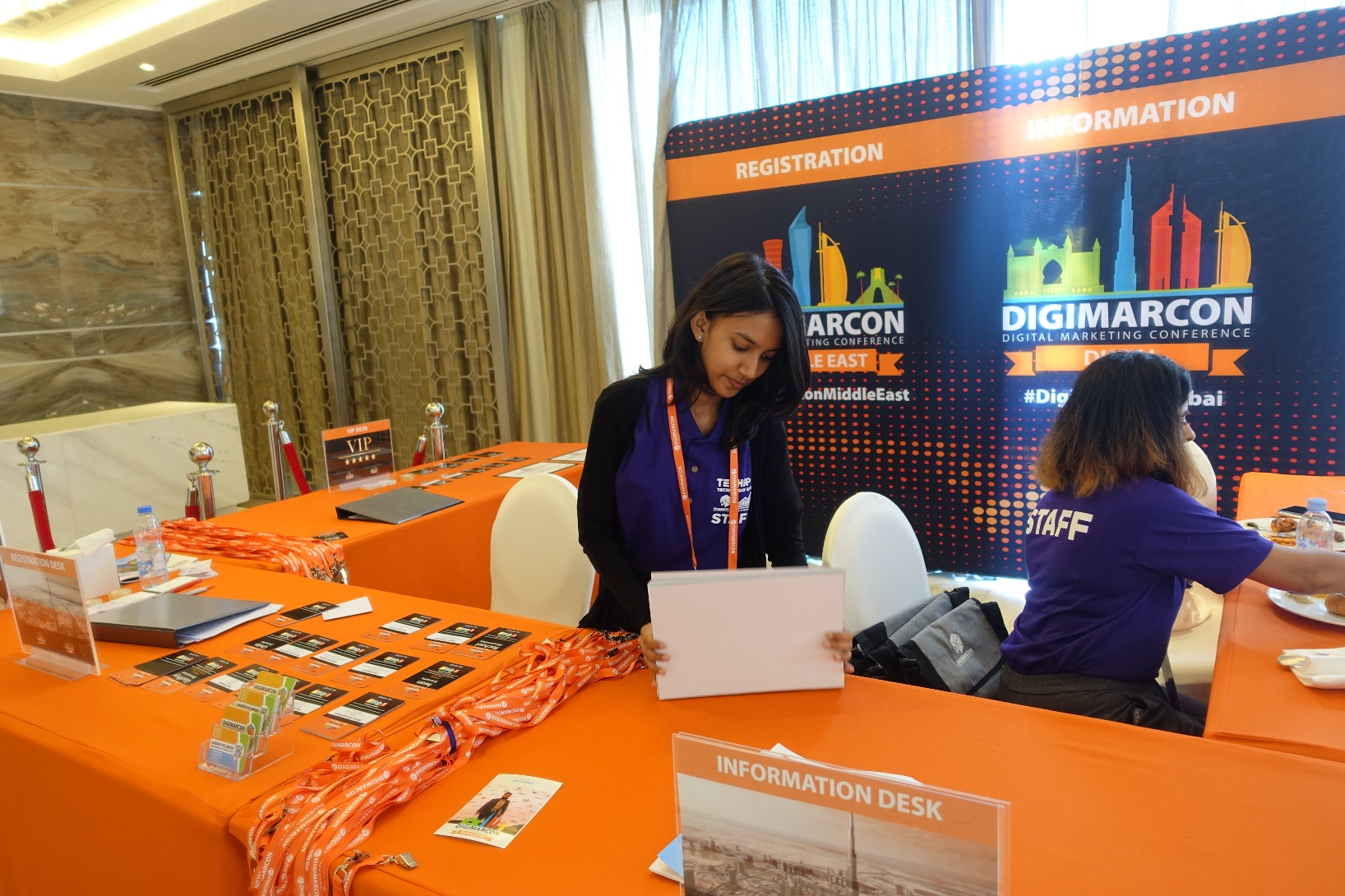
Attending a conference is a well-researched decision. There are many factors to consider such as location, time, venue, cost, speakers, content, etc. At DigiMarCon our results-obsessed Customer Service team are at your service before, during and after the event to help with your needs. It’s at the core of what we do — it drives our business. Offsite, we are ready to assist you via phone, ticket or chat. Onsite at our Conferences, friendly DigiMarCon staff serve as your hosts. They welcome your input and are happy to assist you.
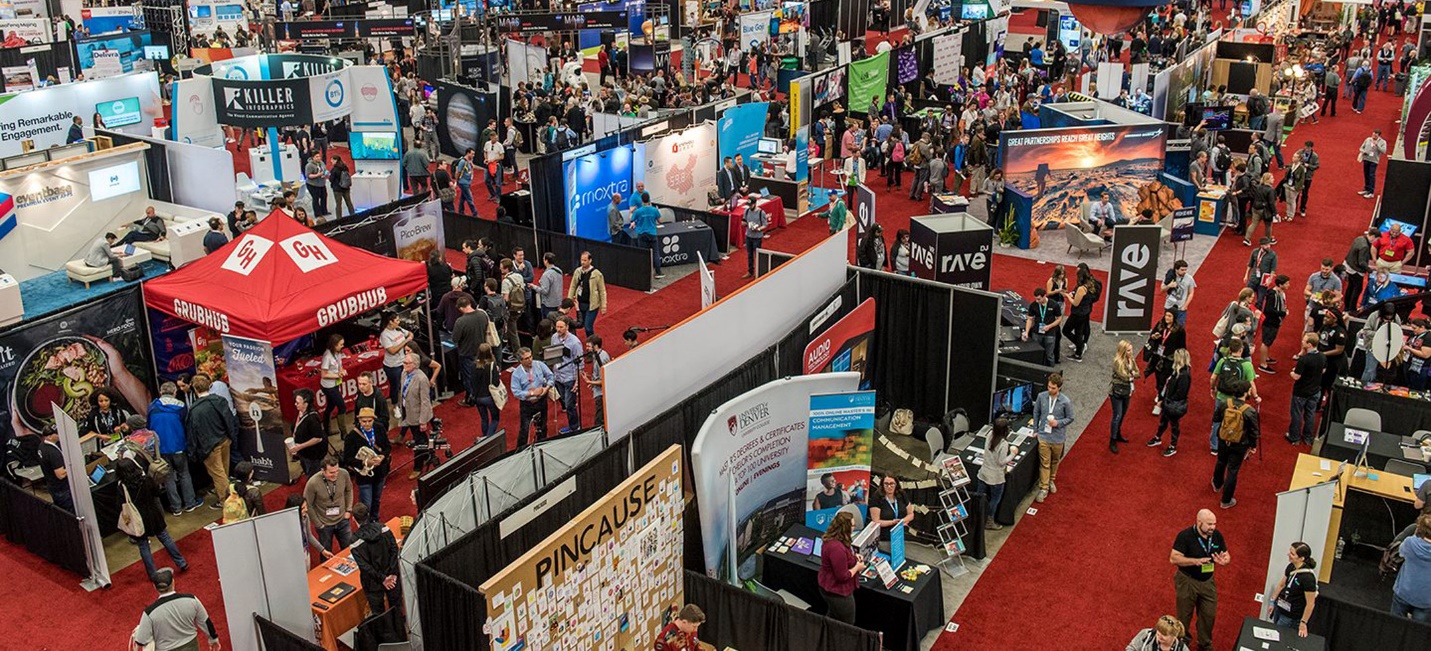
At all DigiMarCon Conferences is the co-located exclusive event TECHSPO Technology Expo, which showcases the new generation of technology and innovation, including; AdTech, MarTech, Internet, Mobile and SaaS technologies. Be inspired, amazed and educated on how these evolving technologies will impact your business for the better. Unlimited Access to TECHSPO Technology Expo is included with all DigiMarCon passes.
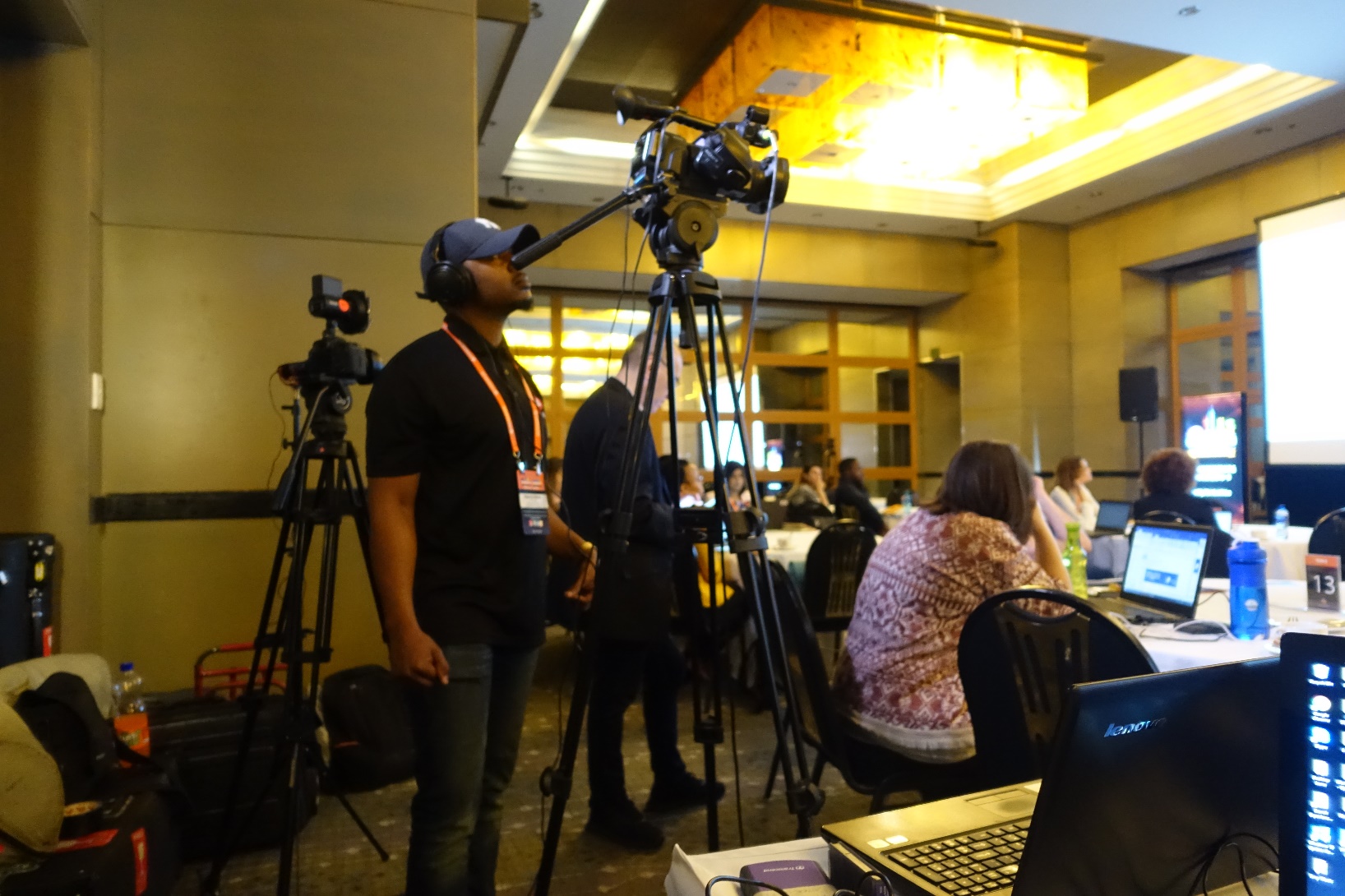
DigiMarCon All Access & VIP Passes include a 12-month on demand access to hundreds of hours of DigiMarCon speaker keynotes, panels and master class presentations from recent DigiMarCon Conferences, including videos, slide decks and key takeaways, available on demand so you can watch what you want, when you want.
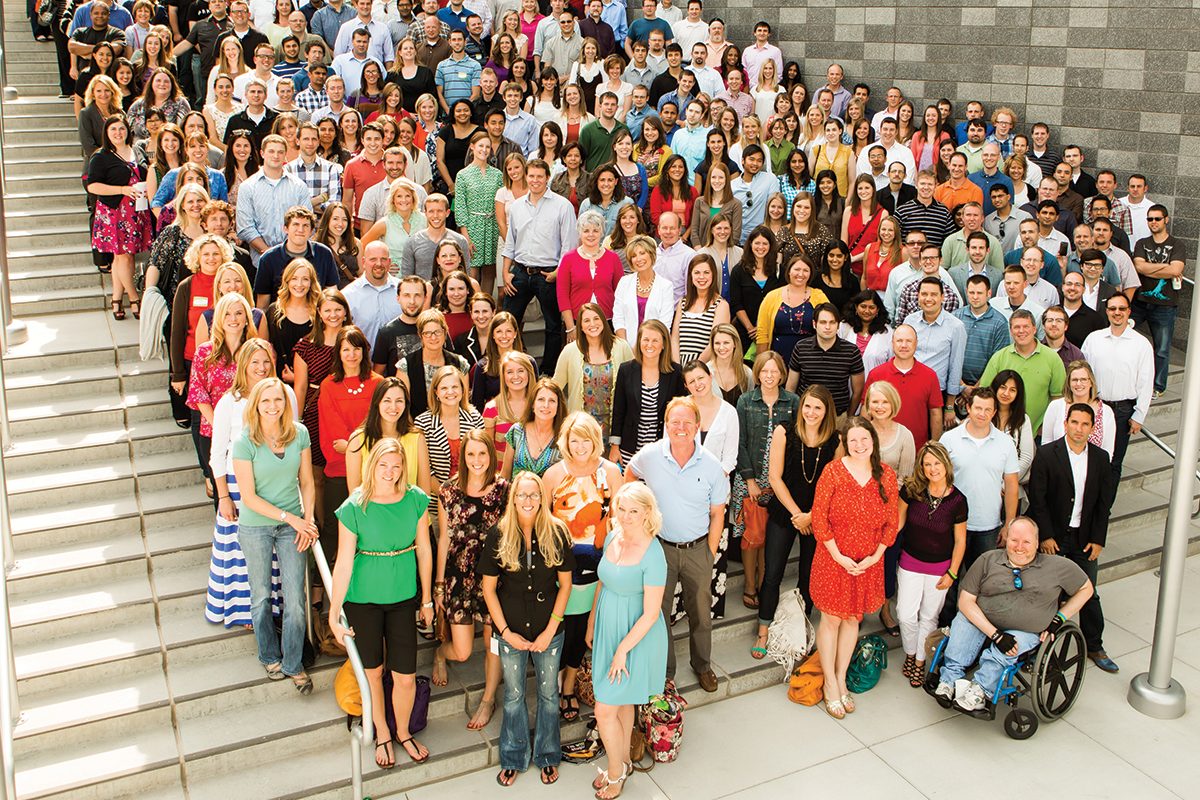
Attendees of DigiMarcon Conferences gain membership to an exclusive global Digital Marketing, Media and Advertising Community of over 500,000 worldwide subscribers to our award-winning digital marketing blog and over 100,000 members to the International Association of Digital Marketing Professionals (visit https://iadmp.org). This global community comprises of innovators, senior marketers and branders, entrepreneurs, digital executives and professionals, web & mobile strategists, designers and web project managers, business leaders, business developers, agency executives and their teams and anyone else who operates in the digital community who leverage digital, mobile, and social media marketing. We provide updates to the latest whitepapers and industry reports to keep you updated on trends, innovation and best practice digital marketing.

The events industry has forever changed in a world affected by COVID-19. The health and safety of our guests, staff and community is our highest priority and paramount. The team at DigiMarCon is dedicated to ensuring a great experience at our in-person events, and that includes providing a safe, clean and hygienic environment for our delegates. Some of the key areas we have implemented safe and hygienic measures include;
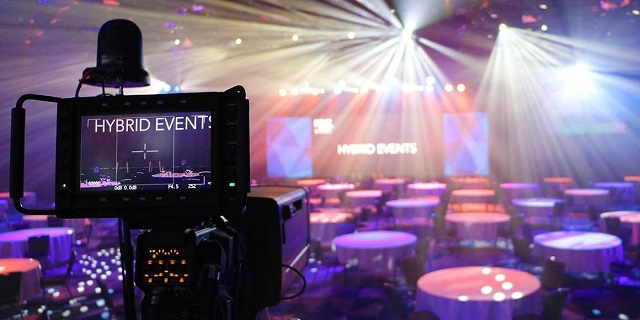
DigiMarCon has always been industry leaders of the Hybrid Event experience for years (a hybrid event combines a "live" in-person event with a "virtual" online component), no one needs to miss out on attending our events. Each DigiMarCon Conference can be attended in-person (with a Main Conference, All Access or VIP Pass) or online (with a Virtual Pass) giving attendees a choice for the experience they want to have. Attending virtually by viewing a Live Stream or On Demand enables participation by people who might be unable to attend physically due to travel or time zone constraints or through a wish to reduce the carbon footprint of the event. If you would like to meet the speakers, network with fellow marketing professionals at refreshment breaks, luncheons and evening receptions, check out the latest Internet, Mobile, AdTech, MarTech and SaaS technologies providers exhibiting then it is highly recommended to attend DigiMarCon in-person. As the largest Digital Marketing, Media and Advertising Conference series with events in 33 international cities worldwide, across 13 countries, there is bound to be a DigiMarCon Event near you to attend in-person if you can.
DigiMarCon Conference Series is the annual gathering of the most powerful brands and senior agency executives in your region. The Sharpest Minds And The Most Influential Decision Makers - Together for Two Days.
Who Attends Our Conferences
Brands • Agencies • Solution & Service Providers • Media Owners • Publishers • Entrepreneurs • Start-Ups • Investors • Government • Corporates • Institutes of Higher Learning




Designing for Discovery Through Visual Content and Personalized Feeds
Google is testing a more visual, card-based Google Discover experience, with topic suggestions and personalized content at its center. The experiment gives news, articles, and videos a more visual place in the feed.
An interest-based feed is a stream of content selected around a person’s interests rather than a typed query. That approach can help users find stories they did not know to search for, while also making the cards easier to scan. The recommendations remain personal, even as the interface changes.
For people browsing on a phone, images and topic prompts can shape which stories catch the eye. Publishers may also want to understand how those choices affect the way their content appears. The key distinction is between the feed’s visual design and the system that selects its recommendations. One can change without replacing the other.
The redesign is an interface experiment, not a promise that every user will see the same feed.
How Google Discover design shapes a personalized feed
Discover builds a personalized feed by matching content to interests inferred in part from Web and App Activity, rather than waiting for a new query. Recommendations reflect signals about a user’s interests, not just current searches.
Google describes Discover as personalized news, articles, and videos based on a user’s interests. The exact feed and available controls can differ among users and devices.
Web and app activity shape recommendations
Web and App Activity can help Google infer topics of interest from a person’s activity. Discover then recommends content that may fit those interests, including stories that do not match a recent search.
The feed is not a fixed set of topics assigned to everyone. Two users interested in the same subject may see different articles, videos, and updates.
The Google app describes the feed as personalized news, articles, and videos. Those recommendations can change as interests and activity change.
Browsing a feed differs from running a search
A search starts with words a person enters and returns results related to that query. Discover instead presents content for browsing, without requiring a new search first.
The Discover feed is available in the Google app on Android and iOS, and Android users can also open it from the home screen. That is the main answer for people looking for Google Discover design on Android or iOS, or the Google Discover design app experience.
The broader feed may include ads alongside recommended content. Its cards are not a search results page ranked for a typed phrase, even when an article matches a user’s interests.
Treat a feed recommendation as an invitation to browse, not as a list of results ranked for a query.
What did the experimental Google app redesign change?
The experimental redesign appeared in Google app beta v15.43, but only a small batch of users saw it. The beta showed a test, not a confirmed rollout.
Google Feed became Google Discover in 2018. Discover remains a feed inside the Google app, rather than a separate app download or login destination.
Readers do not need a separate Discover login screen. They reach their feed through the Google app and their Google account, though the exact access path can vary by device.
The beta screenshots showed three bottom tabs: Home, Search, and Saved. Notifications did not appear in that navigation, a notable change in the test’s app layout.
People looking for a Google Discover design download should know that Discover is not a separate download. The Google Discover design login is also not a separate sign-in; access runs through the Google app and account.
References to Google Discover design in 2022 should not treat later beta screenshots as a 2022 interface. The documented change from Google Feed dates to 2018, while Google updated the Discover icon in October 2024.
No stable-release timeline was given for the beta changes. A beta screenshot is evidence of a test, not proof that the same navigation reached every device.
How did cards, images, and controls change?
Each experimental feed item gained its own card, making images and individual actions more prominent. Share and save actions moved into each card’s overflow menu.
The test removed horizontal dividers between items and made images taller. Those changes gave each article or other content a more distinct visual space.
Individual cards move actions into a menu
Instead of relying on a shared row of controls, each item had its own card and overflow menu. The menu brought share and save actions together.
This layout makes the image and headline easier to scan as a unit. The observations apply to the experimental feed shown in screenshots, not every Google Discover feed.
Editorial cards and ads are distinct parts of the broader feed. The card observations describe editorial content and do not establish that ads use the same controls.
Topic suggestions add a visible follow action
A suggested-topic card included a plus button to follow the topic. The screenshot also showed two overflow menus on that card, rather than one shared menu.
In an October 25, 2024 icon update, a purple check marked followed topics. A green clock marked newsy articles, while a green plus marked topic suggestions.
The carousel paired one primary article with 2+ other articles. That arrangement let a user see a lead story alongside more content on the same topic.
These details help explain how the test could guide browsing without proving a standard design for all feeds. The two overflow menus on the suggested-topic card are a clear example of why an experimental screenshot should not be treated as a finished interaction design.
What makes a page eligible for Discover?
A page can be eligible for Discover when Google indexes it and it meets Discover’s content policies, but eligibility never guarantees placement. Indexing is a requirement, not a promise of visibility.
Google requires no special tags or structured data for Discover eligibility. Older content can still appear when it remains useful and relevant, so a recent publication date is not required.
Publishers can start with three checks:
These checks apply whether a publisher works on general search engine optimization or wants a page to appear in Discover. Google Search is Google’s search engine, but eligibility still does not ensure a feed placement.
Search engine optimization can help a site make its pages clear and accessible, but it cannot force Discover to show a particular story. A page may surface after publication if its content remains helpful to readers.
Check indexing and policy compliance before interpreting a missing Discover appearance as a design problem.
Which visual and editorial choices support Discover?
A representative landscape image, rather than a logo, gives a page a stronger visual preview opportunity. Google recommends an image at least 1200 pixels wide, with more than 300,000 total pixels.
Google also recommends a 16:9 aspect ratio. A publisher can enable large image previews with max-image-preview:large or by using AMP.
For a practical image check, use this list:
A site logo or text-heavy graphic makes a poor thumbnail because it may not show what the story covers. Image selection is one part of search engine optimization, but it does not guarantee that a page will enter Discover.
Pair the image with a title that captures the story’s main point. Google advises against clickbait and misleading previews, and favors timely content, well-told stories, or unique insights.
Good presentation gives readers a fair sense of what they will find after opening a story. Check the actual landscape crop to make sure its important subject remains visible.
How can users customize Discover settings?
Users can tune some Discover recommendations and ad settings, but they cannot switch the feed to an ad-free mode. Discover cannot be used without ads.
Available options and menu paths can vary by device. On Android, users can choose whether videos autoplay, while Google also offers controls for topics and ads.
Common options include:
These settings can shape parts of the Discover feed, but users cannot remove every ad. Turning off ads from one advertiser does not make the whole feed ad-free.
Discover activity can include cards and results shown, cards viewed or customized, topics marked “Not interested in,” and devices used. That saved activity helps describe how the feed was used, though the settings may not share one menu path across phones.
On a mobile connection, select Never or Only on Wi-Fi if autoplay should not use mobile data.
How should publishers read Discover traffic changes?
Discover traffic is less predictable than keyword-driven Search traffic, so publishers should treat it as supplemental. Search Console reports impressions, clicks, and click-through rate (CTR) for up to 16 months.
The Discover Performance report appears when a site meets a minimum impression threshold. It helps publishers track results over time, but a spike does not promise a repeat.
Across Chartbeat’s publisher network, the year-over-year decline in Google Discover traffic rose from 6.6% in the first year to 34.3% in the second year. Those periods ended in July 2025 and July 2026.
Chartbeat’s network also saw Google Discover’s share of pageviews fall 28.4% between July 2024 and July 2026. These network-wide changes are not a forecast for any single site.
A publisher can use the report to spot shifts in impressions, clicks, and CTR, then compare those changes with other sources. Search traffic tied to keywords follows a different pattern from interest-led recommendations.
Use the report to spot patterns, but keep your core traffic plan grounded in channels that are more dependable.
Conclusion
Discover’s visual design can shape browsing, but no card treatment guarantees that a page will appear in a person’s feed. Interface changes affect how people meet stories, while eligibility and placement remain separate.
A clearer card may help a reader notice an article, yet the feed still selects content around individual interests. Publishers should focus on useful stories and sound page practices, rather than treating a visual test as a traffic promise.
The practical next step is to check whether Google can index the page and whether it meets Discover policies. Then review performance in Search Console and keep other traffic sources in the plan.
Review eligibility and performance in Search Console, then treat Discover as one part of a broader audience strategy.